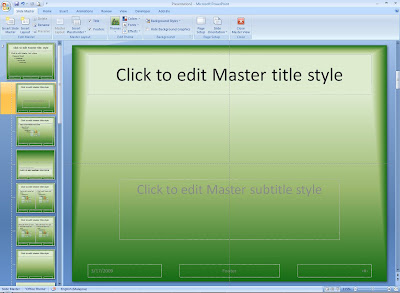
In order to begin customization work, click on the View tab, and select 'Slide Master' from the Presentation Views group.

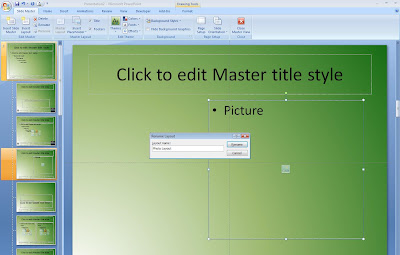
I have chosen to Rename my new layout with a picture placeholder 'Photo Layout'.
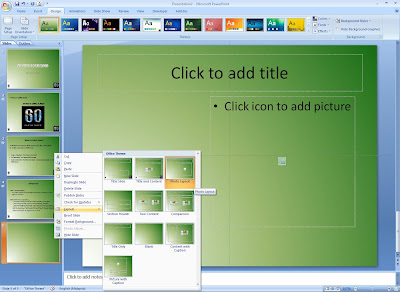
Now Close Master View (still in the Slide Master tab, far right) to return to the normal slide layout. I have inserted a new slide, and when I right-click to change the layout of the slide, I see the 'Photo Layout' there which I just created. Notice that my logos have appeared in my other slides too according to the layout (Title Slide Layout and Title and Content Layout) that was selected.

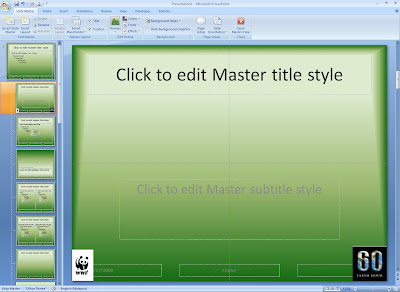
This is how the Slide Master view looks like, all the different slide layouts are lined up on the left.

Like I mentioned earlier, I need to insert the logo into the slide. I do that by selecting on the layout (Title Slide Layout) in which I want this logo to be placed, click on the Insert Picture from the Insert tab. The logo which I will now insert is the WWF panda logo and after this the EarthHour logo.
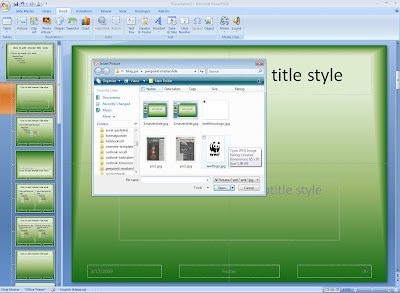

Move these logos to the desired locations. I want these logos in the Title and Content Layout as well, so I have repeated these steps for that layout.

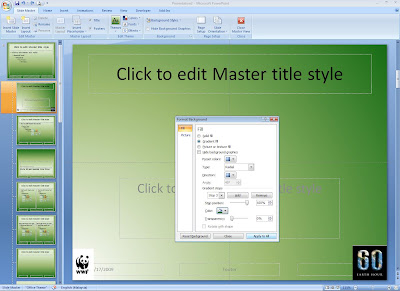
Hmm..I'm not too satisfied with the background gradient, let me do some adjustments first - Slide Master tab, Format Background and enter the changes in the dialog box.

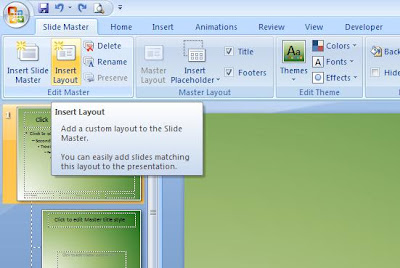
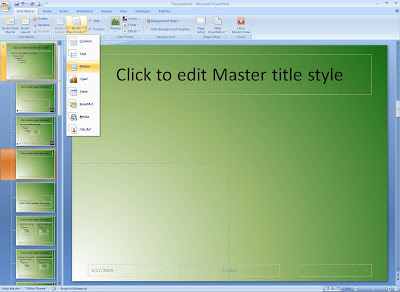
You can also Insert Layout and Insert Placeholder from the Slide Master tab.


I have chosen to Rename my new layout with a picture placeholder 'Photo Layout'.

Now Close Master View (still in the Slide Master tab, far right) to return to the normal slide layout. I have inserted a new slide, and when I right-click to change the layout of the slide, I see the 'Photo Layout' there which I just created. Notice that my logos have appeared in my other slides too according to the layout (Title Slide Layout and Title and Content Layout) that was selected.

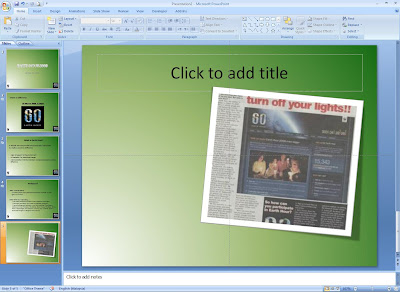
To insert a picture into the placeholder, I simply click on the icon and select the picture of my choice.

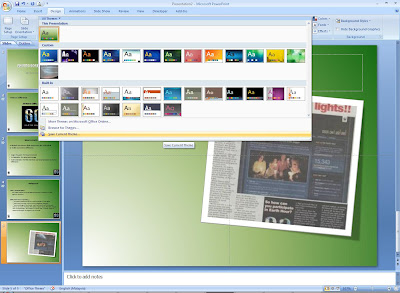
Don't forget to save the theme so that you can reuse it in future. Go to Design tab, click on the dropdown for Themes, and you will find the option to Save Current Theme where you will be prompted to rename the theme, please do not change the default path or location for theme to be saved in.

I feel Slide Master is important to save all that time we spend on copy + paste and rearranging elements in our slides, give this a try :)